
Instructions to manually add a new Internet Radio Station in VOXPRIME products.
Open a new browser window and go to a Radio station website of your choice, to select the radio station that you which to add.
You can go to any directory on the Internet but here is directories that VOXPRIME recommends:

You can browse and listen the different stations on your computer to choose the station to add to your VOXPRIME product. Once you found the desired station, perform the following operations:
- Press the F12 key. (A new window will appear in your browser)
- Select the “Network” tab.
- Apply the “Media” filter.
- In the station directory page, click the “Play” icon and start listening on your computer the station you want to add.
The station will start playing and it’s download URL will appear in the list of the Network tab.
Note: For Firefox browsers, the URL will only appear when you stop playing the station. So you have to play the station for about 5 seconds and stop it.

Figure 1: Find the playing radio station (Google Chrome Browser)

Figure 2: Find the playing radio station (Firefox Browser)
Select the download URL in the list and do a “Right Click” with your mouse. A contextual menu will appear and move your mouse to the “Copy” menu item. A sub menu will then appear and you select “Copy link address” or “Copy URL” depending of your browser. The streaming URL of your Radio station will be copied to your computer’s clipboard.
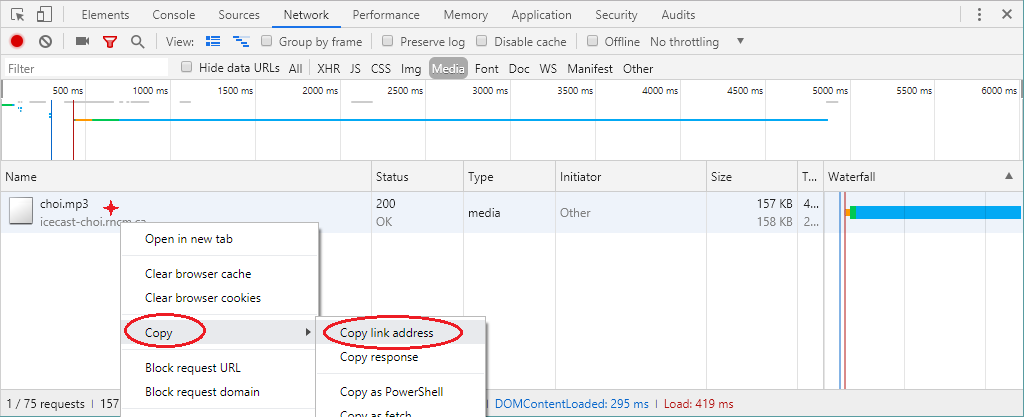
Figure 3: Copy the URL to the clipboard
Next step is to go the Internet Radio section the web interface of your VOXPRIME product, and click the “Add” button to add a new station. Make sure you the “Manual Selection” tab is selected and do the following:
- In station name, enter the name of the station you are adding
- In station URL, press the “CTRL-V” key or “Right Click” and select the “Paste” option, to paste the URL from your clipboard.
- Click the “Save changes” button and the new station will be added to your favorites.

Figure 4: Enter the station in the WEB Interface